User Guide
- Introduction
- Quick start
- Command summary
- Navigating the User Interface
-
Features
- Valid Fields
- Viewing help :
help - Adding a property/buyer:
add - Listing all properties/buyers :
list - Editing a property/buyer :
edit - Viewing price histogram of listed properties and/or buyers :
stat - Locating properties/buyers by name, tags, price:
find - Deleting a property/buyer :
delete - Sorting properties/buyers:
sort -
Matching properties and buyers:
match - Importing data from csv file :
import - Exporting data to csv file :
export - Clearing all entries :
clear - Exiting the program :
exit - Saving the data
- Advanced features
- FAQ
Introduction
PropertyWhiz (PropertyWhiz) is a desktop app for managing properties and property buyers, optimized for use via a Command Line Interface (CLI) while still having the benefits of a Graphical User Interface (GUI). If you can type fast, PropertyWhiz can get your tasks done faster than traditional GUI apps.
Quick start
-
Ensure you have Java
11or above installed in your Computer. -
Download the latest
propertywhiz.jarfrom here. -
Copy the file to the folder you want to use as the home folder for your PropertyWhiz.
-
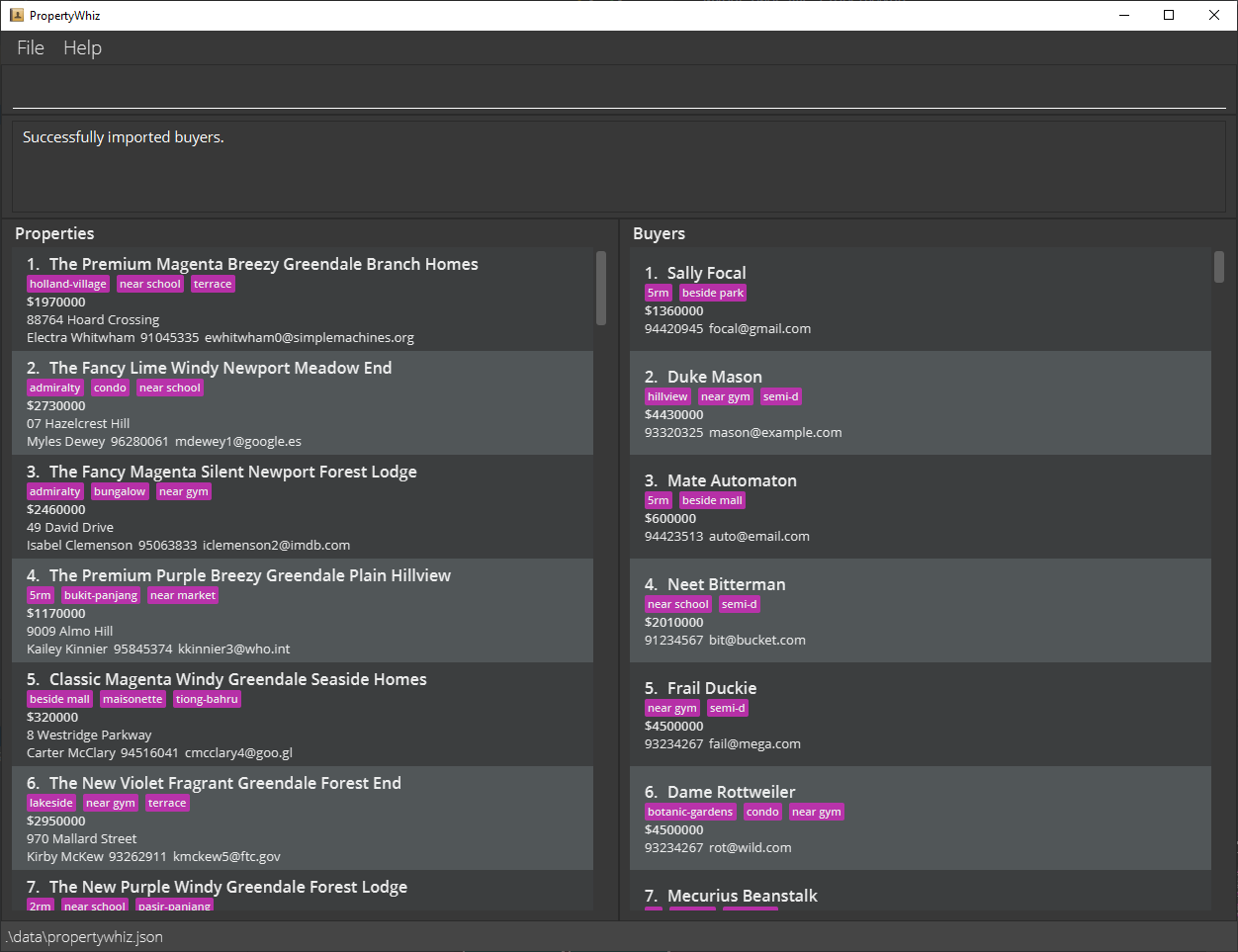
Double-click the file to start the app. The GUI similar to the below should appear in a few seconds. Note how the app contains some sample data.
-
Type the command in the command box and press Enter to execute it. e.g. typing
helpand pressing Enter will open the help window.
Some example commands you can try:-
clear: Deletes all properties/buyers. Enterclearstart from scratch! -
list: Lists all properties/buyers. -
addAdds a property/buyer.- e.g.
add property n/Blk 123 a/123, Clementi Rd, #04-20, 1234665 s/James Lee p/61234567 e/example@email.com $/100000 t/HDB t/3rm
- e.g.
-
delete: Deletes a property/buyer shown in the current list at the given index.- e.g.
delete property 3 - e.g.
delete buyer 3
- e.g.
-
exit: Exits the app.
-
-
Refer to the Features below for details of each command, or the Command Summary.
Command summary
| Action | Format, Examples |
|---|---|
| Add |
Property add property n/PROPERTY_NAME a/PROPERTY_ADDRESS s/SELLER_NAME p/SELLER_PHONE e/SELLER_EMAIL $/PRICE [t/TAG]… Buyer add buyer n/BUYER_NAME p/BUYER_PHONE e/BUYER_EMAIL $/BUDGET) [t/TAG]…
|
| Clear | clear |
| Delete | delete (property \| buyer) INDEX |
| Edit |
Property edit property INDEX [n/PROPERTY_NAME] [a/PROPERTY_ADDRESS] [s/SELLER_NAME] [p/SELLER_PHONE] [e/SELLER_EMAIL] [$/PRICE] [([t/TAG]… \| [ta/TAG_TO_ADD]… [td/TAG_TO_DELETE]…)]]Buyer edit buyer INDEX [n/BUYER_NAME] [p/BUYER_PHONE] [e/BUYER_EMAIL] [$/BUDGET]) [([t/TAG]… \| [ta/TAG_TO_ADD]… [td/TAG_TO_DELETE]…)]
|
| Find | find (properties \| buyers) [KEYWORDS] [t/TAG_TO_MATCH]… |
| List | list |
| Exit | exit |
| Help | help |
| Sort | sort (properties \| buyers) (price \| name) (asc \| desc) |
| Match | match ( auto \| property INDEX \| buyer INDEX ) |
| Import | import (properties \| buyers) |
| Export | export (properties \| buyers) |
Navigating the User Interface
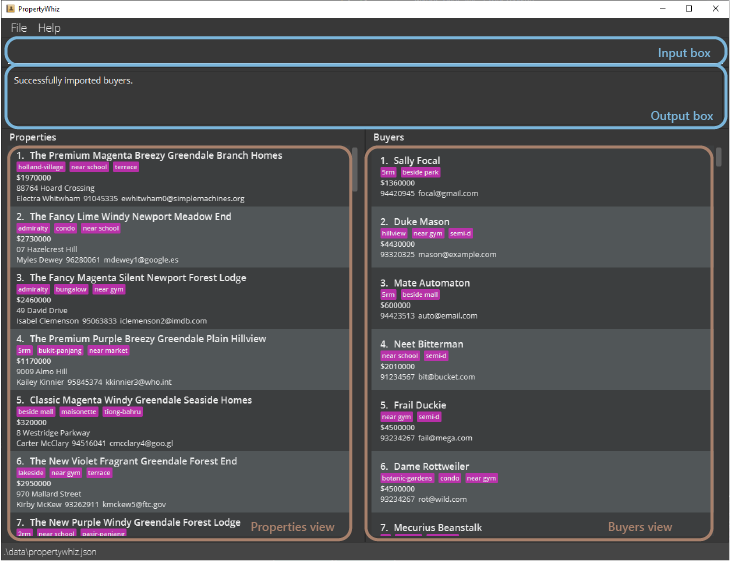
The UI is split into the input and output sections, as well as two view columns for Property and Buyer each.

Here is the breakdown of an individual property card.
| Item | Description |
|---|---|
| Name | Name of property listing. |
| Price | Quoted price of seller. |
| Address | Address of property listing. |
| Seller | Name of seller. |
| Phone | Phone number of seller. |
| Email of seller. |

Here is the breakdown of an individual buyer card.
| Item | Description |
|---|---|
| Name | Name of buyer. |
| Budget | The buyer’s budget. |
| Phone | Phone number of buyer. |
| Email of buyer. |
Features
TODO: Define named parameters, positional parameters
 Notes about the command format:
-
Words in
UPPER_CASEare the parameters to be supplied by the user.
e.g. inadd property n/PROPERTY_NAME,PROPERTY_NAMEis a parameter which can be used asadd property n/Beautiful Condo. -
Items in square brackets are optional.
e.gn/PROPERTY_NAME [t/TAG]can be used asn/Beautiful Condo t/condoor asn/Beautiful Condo. -
Items with
…after them can be repeated any number of times.
e.g.[t/TAG]…can be omitted, used once:t/condo, twice:t/condo t/familyor more times. -
Items in circle brackets
()separated by|means that you can only choose 1 of the partitioned items
e.g.([t/TAG] | [ta/TAG_TO_ADD] [t/TAG_TO_DELETE])can be used ast/condo,ta/condo td/small condobut nott/condo ta/condo,t/condo td/small condo,t/condo ta/condo td/small condo -
Parameters can be in any order.
e.g. if the command specifiesn/NAME p/PHONE_NUMBER,p/PHONE_NUMBER n/NAMEis also acceptable. -
If a parameter is expected only once in the command but you specified it multiple times, only the last occurrence of the parameter will be taken.
e.g. if you specifyp/12341234 p/56785678, onlyp/56785678will be taken. -
Extraneous parameters for commands that do not take in parameters (such as
help,list,exitandclear) will be ignored.
e.g. if the command specifieshelp 123, it will be interpreted ashelp.
TODO: I suggest we centralize common input requirements here.
Valid Fields
Here are some fields that are shared amongst commands.
Property/Buyer names
- Names must start with a letter or number, and only contain alphanumerical characters, spaces and hyphens (
-). - Names have a maximum allowed length of 50.
Property Prices/Buyer Budget
- Prices must be between 4 and 9 digits (both inclusive).
- Leading zeroes will be ignored. For e.g.,
00100has 5 characters, but it only has 3 digits, not counting the leading 0s. Hence,00100is an invalid price.
Tags
- Tags are always optional.
- Tags must start with a letter or number, and only contain alphanumerical characters, spaces and hyphens (
-). - Tags have a maximum allowed length of 100.
Viewing help : help
Shows a message explaning how to access the help page.

Format: help
Adding a property/buyer: add
Adds a property/buyer to PropertyWhiz.
- All other fields are compulsory other than tags.
See valid inputs for details on constraints on what you can enter.
Format:
- Adding a property:
add property n/PROPERTY_NAME a/PROPERTY_ADDRESS s/SELLER_NAME p/SELLER_PHONE e/SELLER_EMAIL $/PRICE [t/TAG]… - Adding a buyer:
add buyer n/BUYER_NAME p/BUYER_PHONE e/BUYER_EMAIL $/BUDGET [t/TAG]…
Examples:
add property n/Blk 123 a/123, Clementi Rd, #04-20, 1234665 s/James Lee p/61234567 e/james@email.com $/100000 t/hdb t/3rmadd buyer n/Sam p/91234567 e/sam@email.com $/740000 t/hdb t/3rm
 Tip:
A property/buyer can have any number of tags (including 0). All tags will be converted to lowercase.
Tip:
A property/buyer can have any number of tags (including 0). All tags will be converted to lowercase.
Listing all properties/buyers : list
Shows a list of all properties and buyers in PropertyWhiz.
Format: list
Editing a property/buyer : edit
Edits the property/buyer at the specified INDEX. The index refers to the index number shown in the displayed property/buyer list. The index must be a positive integer 1, 2, 3, …
- At least one of the optional fields must be provided.
- Existing values will be updated to the input values.
- When editing tags, the existing tags of the property will be removed i.e adding of tags is not cumulative.
- Like
add, tags added viaeditwill be automatically converted to lower case. - You can remove all the property/buyer’s tags by typing
t/without specifying any tags after it.
See valid inputs for details on constraints on what you can enter.
Format:
- Editing a property:
edit property INDEX [n/PROPERTY_NAME] [a/PROPERTY_ADDRESS] [s/SELLER_NAME] [p/SELLER_PHONE] [e/SELLER_EMAIL] [$/PRICE] [([t/TAG]… | [ta/TAG_TO_ADD]… [td/TAG_TO_DELETE]…)] - Editing a buyer:
edit buyer INDEX [n/BUYER_NAME] [p/BUYER_PHONE] [e/BUYER_EMAIL] [$/BUDGET] [([t/TAG]… | [ta/TAG_TO_ADD]… [td/TAG_TO_DELETE]…)]
Examples:
-
edit property 1 p/91234567 e/johndoe@example.comEdits the phone number and email address of the 1st property to be91234567andjohndoe@example.comrespectively. -
edit property 2 n/Blk 298 Toa Payoh Central t/Edits the name of the 2nd property to beBlk 298 Toa Payoh Centraland clears all existing tags. -
edit buyer 1 p/91234567 e/johndoe@example.comEdits the phone number and email address of the 1st buyer to be91234567andjohndoe@example.comrespectively. -
edit property 1 ta/4rm ta/near mrtEdits the tag list of the 1st property by adding two tags called “4rm” and “near mrt” if they are not already present in the original tag list. -
edit property 1 ta/4rm td/near mrtEdits the tag list of the 1st property by adding a tag called “4rm” if it does not already exist in the original tag list and removing a tag called “near mrt” if it is present in the original tag list. -
edit property 1 ta/near MRTEdits the tag list of the 1st property by adding a tag callednear mrtif it does not already exist in the original tag list. Notice that the case ofMRTis lowered tomrt.
 Caution:
The following example is invalid:
Caution:
The following example is invalid:
edit property 1 t/near school ta/4rm td/near mrt You cannot reset the tag list of a property, in this case to [“near school”], and modify the resetted tag list by adding a tag called “4rm” and removing a tag called “near mrt”. The rationale is that this may be potentially confusing.
Viewing price histogram of listed properties and/or buyers : stat
Creates a pop-up with the price histogram of the currently listed properties and/or buyers in the view.
Format: stat [(property | buyer)]
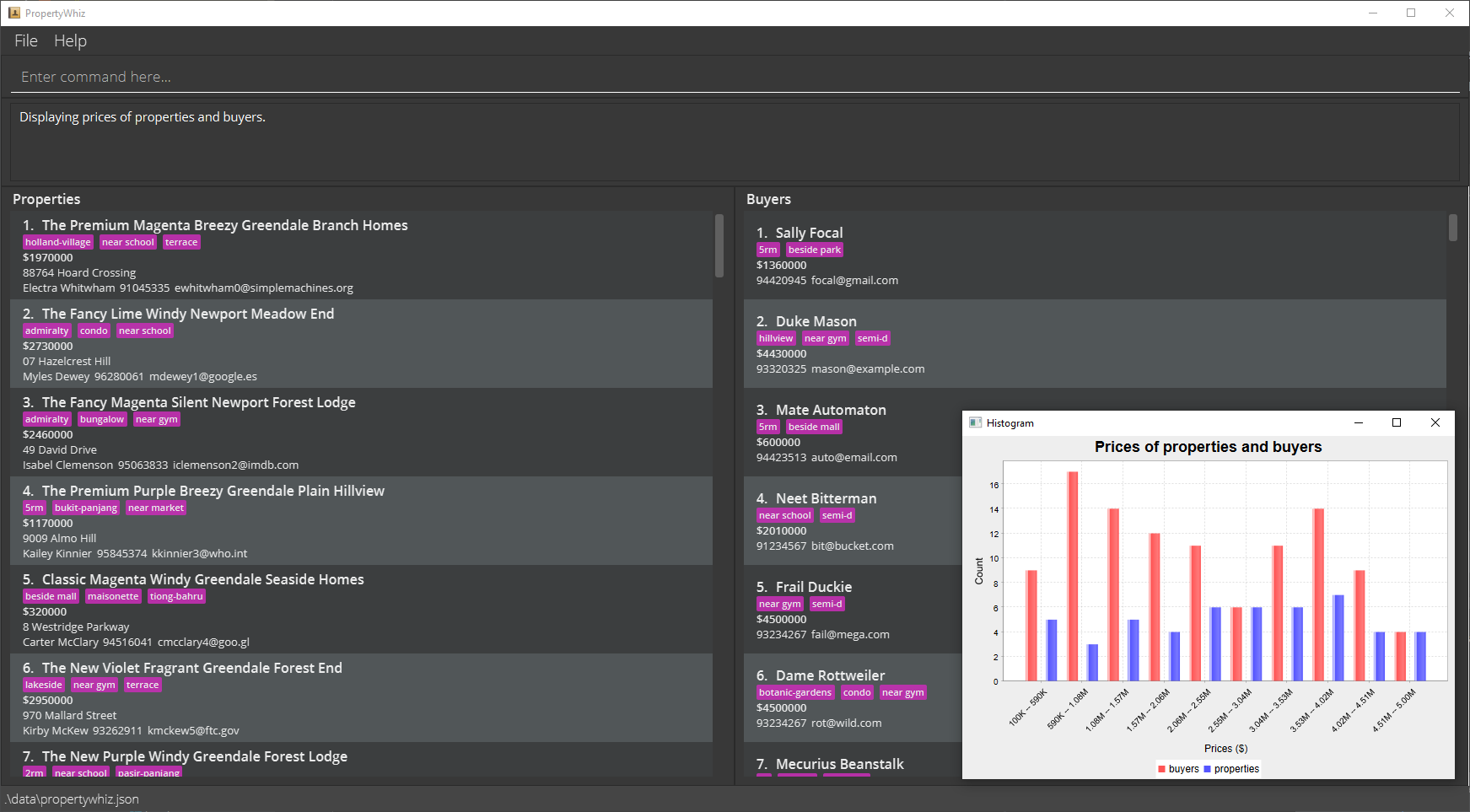
- Entering another
statcommand while the existing one is open replaces the view in the pop-up window. - If only buyers or only properties are visible,
statautomatically presents the only buyers/only properties view.
Locating properties/buyers by name, tags, price: find
Finds properties or buyers whose names contain any of the given keywords, whose tag list contain all of the specified tags and whose price is within the specified price range in the currently displayed list.
Format: find (properties | buyers) [KEYWORDS] [t/TAG_TO_MATCH]… [$min/MIN_PRICE] [$max/MAX_PRICE]
-
Finds only properties or buyers in the currently displayed list
e.g If
find properties hillviewreturn propertiesHillviewandHillview Rise, then applying another find commandfind properties grovewill return an empty list, even if PropertyWhiz has a propertyGrove. - The keyword search is case-insensitive. e.g
hillviewwill matchHillview - The order of the keywords does not matter. e.g.
Hillview Risewill matchRise Hillview - Only the property name is searched.
- Only full words will be matched e.g.
Hanwill not matchHillview - The tag search is case-insensitive, e.g. both
t/mrt,t/MRTwill match themrttag. - Properties matching at least one keyword (i.e.
ORsearch) and matching all the tags (i.e.ANDsearch) will be returned.- e.g. For keywords,
Hillview Risewill returnHillview Grove,Rise Rivervale - e.g. For tags,
t/4rm t/near schoolwill return properties with both4rmtag, andnear schooltag.
- e.g. For keywords,
- The price search is inclusive of the specified number
- e.g.
find properties $min/10000will return properties that are at least $10000 - e.g.
find properties $max/100000will return properties that are at most $100000
- e.g.
- Only one
$min/and$max/is allowed in the input- e.g.
find properties $min/1000 $max/100000is valid - e.g.
find properties $min/10000 $min/1999999 $max/100000is invalid
- e.g.
Examples:
-
find properties Jurongreturns propertiesjurongandJurong East -
find buyers Sallyreturns buyerssallyandSally Brown -
find properties Jurong t/4rm t/near schoolreturns propertiesjurong [4rm] [near school] [near mrt]andJurong East [4rm] [near school] [near mrt]but notjurong [4rm] [near mrt] -
find properties t/4rm t/near schoolreturns propertiesjurong [4rm] [near school] [near mrt]andClementi [4rm] [near school] [near mrt] -
find buyers Sally t/4rm t/near schoolreturns buyersSally [4rm] [near school] [quiet]andsally brown [4rm] [near school] -
find properties $min/10000 $max/1000000returns properties that are at least $10000 and at most $1000000
Deleting a property/buyer : delete
Deletes the specified property/buyer from PropertyWhiz.
Format: delete (property | buyer) INDEX
- Deletes the property/buyer at the specified
INDEX. - The index refers to the index number shown in the displayed property/buyer list.
- The index must be a positive integer 1, 2, 3, …
Examples:
-
listfollowed bydelete property 2deletes the 2nd property in PropertyWhiz. -
find East Coastfollowed bydelete property 1deletes the 1st property in the results of thefindcommand.
Sorting properties/buyers: sort
Sorts the properties / buyers in PropertyWhiz.
Format: sort (properties | buyers) (price | name) (asc | desc)
- Sort the properties in the current view based on properties
price/nameinasc(ascending) /desc(descending) order - Sort the buyers in the current view based on buyers
price/nameinasc(ascending) /desc(descending) order
Examples:
-
sort properties price ascreturns the property list sorted by price in ascending order -
sort buyers name descreturns the buyer list sorted by name in descending order
Matching properties and buyers: match
Matches properties and buyers to one another.
Format: match ( auto | property INDEX | buyer INDEX )
One to many matching of property to buyers
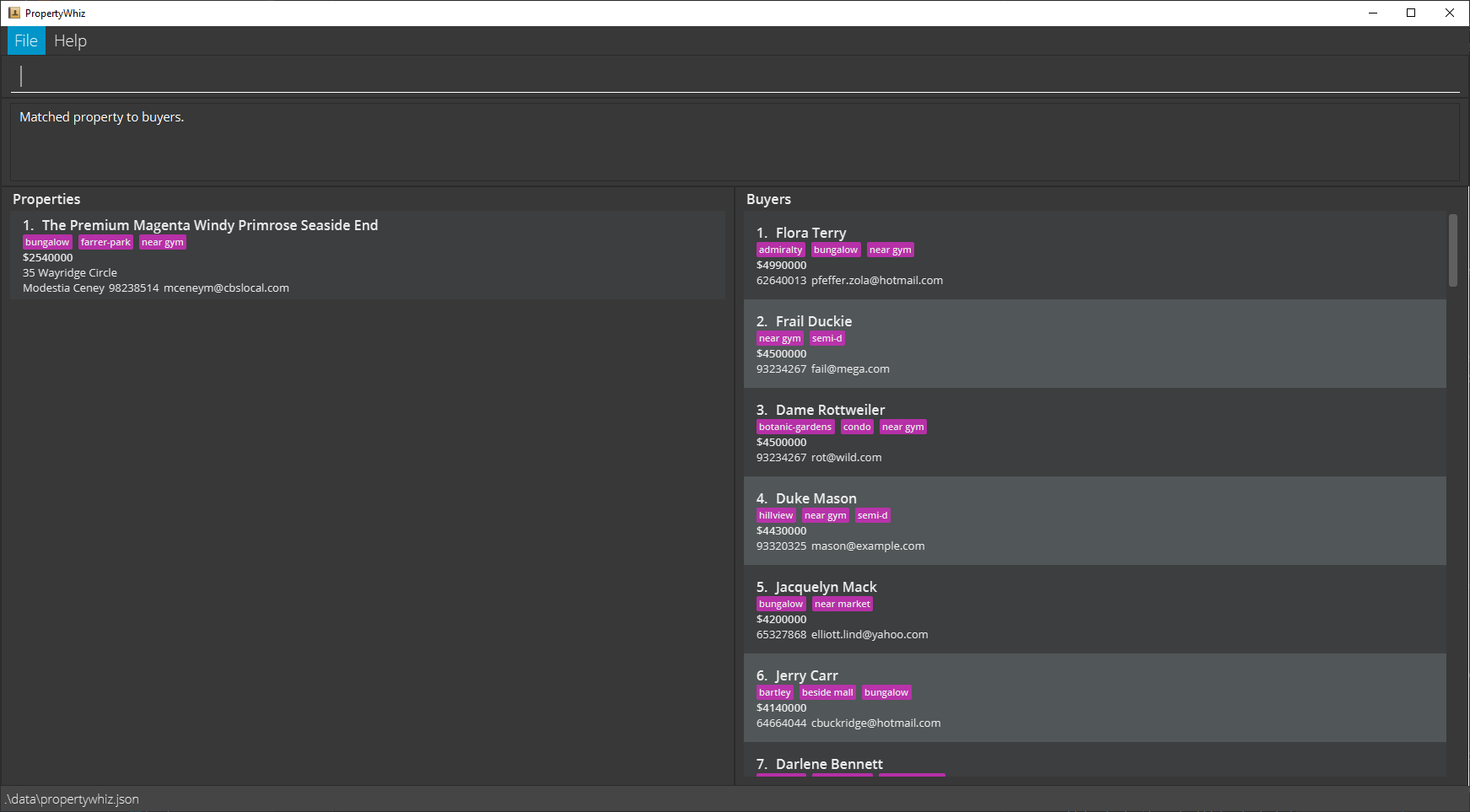
Matches compatible buyers to a specified property, displayed in descending order of desirability.
Format: match property INDEX
- A buyer is compatible with a property if the buyer’s budget is greater than or equal to the property’s selling price.
- When 2 buyers, say
AandBare both compatible with a property, thenAis more desirable thanBifAhas more tags in common with the property thanB. This is because a buyer’s tags represents what the buyer would want in a property, and a property’s tags represents the features the property has to offer. - When 2 buyers have the same number of tags in common with a property, the buyer with a higher budget is ranked higher in desirability.
Caution:
The matching is done on the currently displayed buyer list. In other words, if you have filtered buyers for example, using the find command, then the potential matches for match property 1 (the first displayed property) will only come from the filtered buyer list.
To illustrate, suppose you have 5 buyers in total (Adam, Ben, Carl, Daniel, Elle), and you have filtered the buyers to 3 (Adam, Ben, Carl). Then match property 1 will only examine the 3 buyers (Adam, Ben, Carl). Even if Daniel or Elle is compatible with the first displayed property, they will not be considered in the matching.
TODO: This part can be moved to a more general area.
Tip:
You can use the list command to reset the display lists to display all the available buyers before using match property. This will find compatible buyers from the full pool of available buyers.
Example:
Suppose there are 5 properties currently displayed in the property list. match property 2 matches all buyers compatible with the second displayed property. Let’s call this property “Greendale Heights” and assume it has a selling price of 1,000,000 and has tags 4rm, near school. Then a buyer whose budget is 900,000 would not be compatible, and a buyer whose budget is 1,100,000 is compatible.
Suppose 3 buyers, “Richard”, “Sam”, and “Tim” , are both compatible with Greendale Heights. Richard has tags 5rm, far from school, Sam has one tag 4rm, and Tim has tags 4rm, near school. Then Tim has the greatest number of tags in common and is the most desirable buyer match, whereas Richard has the least number of tags in common and is the least desirable buyer match.
One to many matching of buyer to properties
Matches compatible properties to a specified buyer, displayed in descending order of desirability.
Format: match buyer INDEX
- A property is compatible with a buyer if the property’s selling price is lower than the buyer’s budget, i.e. the property is within the budget of the buyer.
- When 2 properties, say
AandBare both compatible with a buyer, thenAis more desirable thanBifAhas more tags in common with the buyer thanB. - When 2 properties have the same number of tags in common with a buyer, the property with a lower selling price is ranked higher in desirability, in other words, cheaper is better.
- Similar to
match property, the matching formatch buyeris done on the currently displayed property list. You can use thelistcommand to reset the display lists to display all the available properties before usingmatch buyer.
Example:
Suppose there are 5 buyers currently displayed in the buyer list. match buyer 2 matches all properties compatible with the second displayed buyer. Let’s call this buyer “Sam” and assume Sam has a budget of 1,000,000 and has tags 4rm, near school. Then a property whose selling price is 1,100,000 would not be compatible, and a property whose selling price is 900,000 is compatible.
Suppose 3 properties, “Dee Gardens”, “Olive Gardens”, and “Pear Gardens” are all compatible with Sam. Dee Gardens has tags 5rm, far from school, Olive Gardens has one tag 4rm, and Pear Gardens has tags 4rm, near school. Then Pear Gardens has the greatest number of tags in common and is the most desirable property match, whereas Dee Gardens has the least number of tags in common and is the least desirable property match.
Intelligent matching of properties and buyers
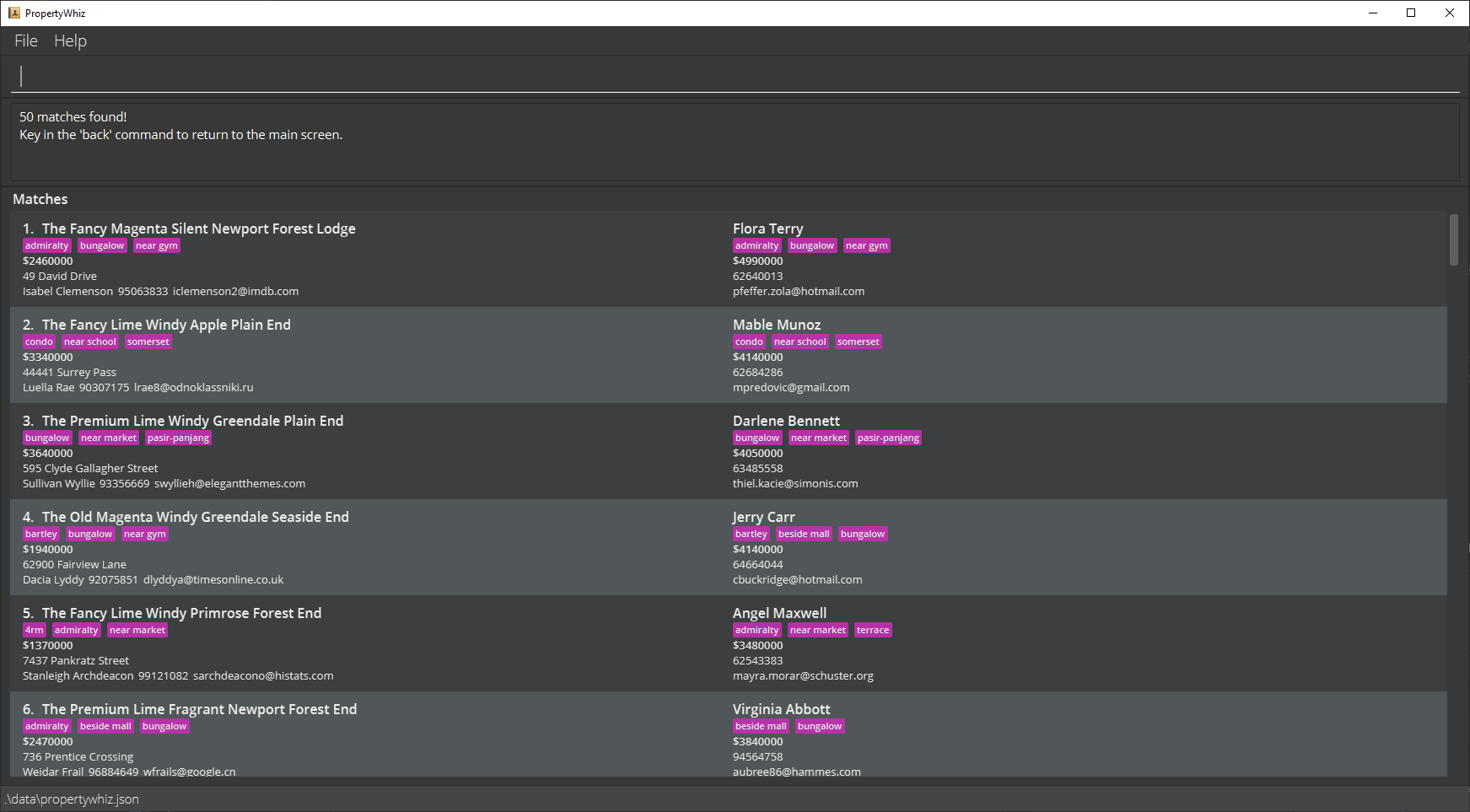
The match auto command instructs PropertyWhiz to automatically match buyers to properties.
Upon entering match auto, PropertyWhiz will intelligently pair properties with buyers based on their compatibility. The matches will then be displayed to you starting with the most compatible pairings at the top.
PropertyWhiz determines compatibility based on the number of tags in common, the buyer’s budget, as well as the property price. Matches where the buyer and property have more tags in common are considered more compatible. Likewise for matches where the property price is within the buyer’s budget.
After running match auto, enter back into the command box to return to the previously shown list of buyers and properties.
Importing data from csv file : import
Imports buyers or properties from csv file. Imported items will be added to the front of the currently displayed list.
Format: import buyers or import properties
- You can select the import file location from a pop-up dialog box.
- The buyer or property list imported must be valid. Some criteria are as follows:
- No duplicates
- Valid fields e.g. name, email etc.
- No missing fields
- The csv must begin with a header which includes the names of each column.
See below for example csv files.
Exporting data to csv file : export
Exports buyers or properties in the currently displayed list to csv file.
Format: export buyers or export properties
- You can select the export file location from a pop-up dialog box.
Example csv output of export property
"Name","Address","Seller Name","Phone","Email","Price","Tags"
"Geylang St 29","Blk 30 Geylang Street 29, #06-40","Alex Yeoh","87438807","alexyeoh@example.com","419999","flowers,garden"
"Dee Gardens","Blk 30 Lorong 3 Serangoon Gardens, #07-18","Beatrice Yu","99272758","berniceyu@example.com","420000","quiet"
"Olive Gardens","Blk 11 Ang Mo Kio Street 74, #11-04","Charlotte Oliveiro","93210283","charlotte@example.com","420001","cathedral"
"Pear Gardens","Blk 436 Serangoon Gardens Street 26, #16-43","David Li","91031282","lidavid@example.com","420002","near cbd"
"Tampa Bay","Blk 47 Tampines Street 20, #17-35","Irfan Ibrahim","92492021","irfan@example.com","420003","noisy,party"
Example csv output of export buyer
"Name","Phone","Email","Budget","Tags"
"Sally Focal","94420945","focal@gmail.com","419999","flowers,near school,garden"
"Duke Mason","93320325","mason@example.com","420000","4rm"
"Mate Automaton","94423513","auto@email.com","420001","near cdb"
"Neet Bitterman","91234567","bit@bucket.com","420002","huge house,noisy,party"
"Frail Duckie","93234267","fail@mega.com","420003","tiny,1rm"
Clearing all entries : clear
Clears all entries from PropertyWhiz.
Format: clear
Exiting the program : exit
Exits the program.
Format: exit
Saving the data
PropertyWhiz’s data are saved in the hard disk automatically after any command that changes the data. There is no need to save manually.
Advanced features
This section contains features intended for advanced users.
Editing the data file
PropertyWhiz’s data are saved as a JSON file [JAR file location]/data/propertywhiz.json. Advanced users are welcome to update data directly by editing that data file.
Caution:
If your changes to the data file makes its format invalid, PropertyWhiz will discard all data and start with an empty data file at the next run.
Multi-command input
You may copy and paste multiple lines of commands into the command box. Press the Enter key to execute the first command and autofill the next into the command box. This continues until you enter a different command or all commands have been executed.
FAQ
Q: How do I transfer my data to another Computer?
A: Install the app in the other computer and overwrite the empty data file it creates with the file that contains the data of your previous PropertyWhiz home folder.